

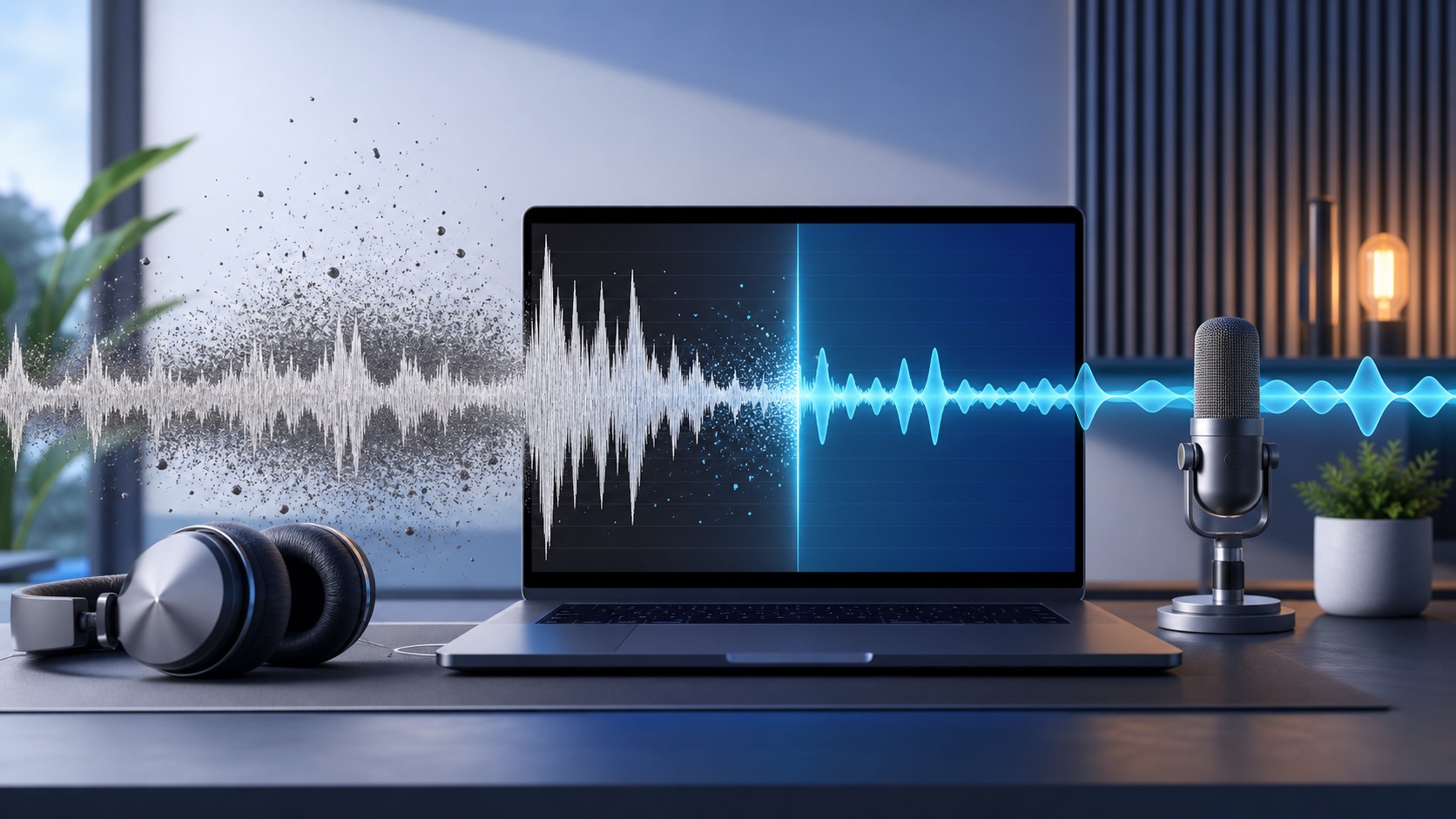
If you need to remove background noise from audio online, the fastest workflow is simple: upload the recording, let AI reduce the unwanted noise, compare a cleaned preview with the original, then download the full file only if it sounds right. That works well for podcasts, voiceovers, interviews, lessons, webinars, phone videos, and social clips where the main problem is distracting background sound.
The important part is not just making the file quieter. Good audio cleanup should keep the voice natural while reducing the sounds that pull attention away from it.
What background noise removal actually does
Background noise removal separates the voice you want from the sounds around it. In real recordings, that usually means reducing steady noise such as:
- Fan noise from a laptop or air conditioner
- Electrical hum from lights, chargers, or microphones
- Hiss from low-quality inputs
- Wind noise from outdoor recordings
- Room tone from echoey spaces
- Traffic, keyboard taps, or distant conversation
AI audio cleanup is especially useful when the recording is already good enough to understand but not clean enough to publish. It can make a rough take easier to listen to, help a remote interview feel more polished, and save time when you do not want to learn a full audio editing suite.
It is not a time machine. If a voice is buried under music, clipped beyond repair, or recorded far away from the microphone in a loud room, cleanup can help but may not fully restore studio-quality sound. That is why a preview-first workflow matters.
The easiest way to clean audio online
Here is the practical workflow we recommend for most creators.
1. Upload the original file
Start with the best original you have. If you recorded both a compressed export and a higher-quality source file, upload the source file. A WAV, M4A, MP3, MP4, MOV, or similar recording gives the cleanup model more useful information than a version that has already been heavily compressed or edited several times.
With SoundClean, you can upload audio or video directly in the browser. You do not need to install a desktop editor just to reduce noise.
2. Preview the cleaned result
Before paying for or exporting a full cleaned file, listen to a short cleaned preview. Compare it with the original using headphones if you can.
Listen for three things:
- The voice should be clearer and easier to follow.
- The background should be less distracting.
- The speaker should still sound human, not thin or metallic.
If the preview sounds good, the full file is likely worth processing. If the preview reveals that the recording is too damaged, you have learned that before spending time on the full export.
3. Download the full cleaned file
Once the preview passes the listening test, download the full cleaned version and use it in your editing workflow. For podcasts and videos, that might mean replacing the original audio track before you cut the episode, add captions, or export clips.
For longer recordings, it is usually better to clean the full file before doing detailed edits. That way every clip, intro, transcript, and social cut starts from the same cleaner source.
When online AI cleanup is the right tool
Online noise removal is a good fit when speed matters and the main recording is mostly speech. A few common examples:
Podcasts and interviews
Remote podcast recordings often include laptop fans, room echo, table bumps, or inconsistent microphone setups. Cleaning the audio before editing can make the whole episode easier to cut because you are working with more consistent sound.
YouTube and course videos
Viewers will forgive imperfect lighting faster than hard-to-hear audio. If your tutorial, webinar, lecture, or screen recording has hum or room noise, cleaning the audio track can make the video feel more professional without reshooting.
Voiceovers and social clips
Short-form videos move fast, but harsh audio makes people swipe away. Cleaning voiceovers, phone clips, and quick explainers helps the message land, especially when people listen on small speakers or earbuds.
Meetings and lectures
AI cleanup can make spoken recordings easier to review, summarize, and transcribe. It is useful for lectures, client calls, research interviews, and internal training sessions where clarity matters more than music-quality audio.
How to get better results before you upload
Noise removal works best when the original recording gives the model a clear voice to preserve. A few simple recording habits make a big difference:
- Record closer to the microphone.
- Turn off fans, HVAC, and loud appliances when possible.
- Put the microphone away from keyboards and table vibrations.
- Avoid rooms with hard, empty walls if you can.
- Record a quick test and listen before doing the full take.
- Keep the original file, not only the compressed social export.
You do not need a studio. Even a quiet closet, soft furniture, or a microphone placed closer to the speaker can make cleanup more effective.
What to check in the cleaned preview
Use the preview as a quality gate, not a formality. The cleaned version should make the recording easier to publish, but you still want to catch artifacts early.
Check the beginning, middle, and loudest parts of the file. Pay attention to plosive sounds, laughter, words that trail off, and any moments where the noise is louder than usual. If the recording includes music, applause, or several people talking at once, listen carefully because aggressive cleanup can sometimes change those sounds.
The best result is usually balanced: less noise, clearer speech, and a voice that still feels like the original person.
Audio cleanup before editing vs. after editing
For most voice-first projects, clean the audio before final editing. This gives you a cleaner source for cuts, captions, waveform editing, and exports.
There are a few exceptions. If you only need to fix one short noisy section, you might edit first and clean that section separately. If your project mixes voice, music, and sound effects, you may want to clean only the raw voice track before mixing everything together.
A simple rule: if the voice is the main asset, clean the voice early.
Try a preview-first cleanup
SoundClean is built around a low-friction workflow: upload a noisy audio or video file, hear a cleaned preview, and download the full cleaned version only when it sounds right.
That makes it useful when you have a real recording to fix and do not want to guess whether cleanup will work. Start with the noisiest clip you still think is usable, compare the preview, and let your ears decide.
Try SoundClean with an audio or video file and hear the difference before committing to the full download.
FAQ
Can I remove background noise from audio online?
Yes. Upload your recording to an online AI audio cleaner, preview the cleaned result, and download the full file when the speech sounds clearer.
What kinds of noise can AI audio cleanup reduce?
AI cleanup can reduce common distractions such as fan noise, room hum, hiss, wind, traffic, keyboard noise, and light echo. Results depend on the quality of the original recording.
Does noise removal work for video files too?
Yes. SoundClean can clean the audio track in common video formats while keeping the video intact.
Should I clean audio before or after editing?
For most podcasts, videos, voiceovers, and lectures, clean the audio before final editing so every cut and export uses the clearer source.