

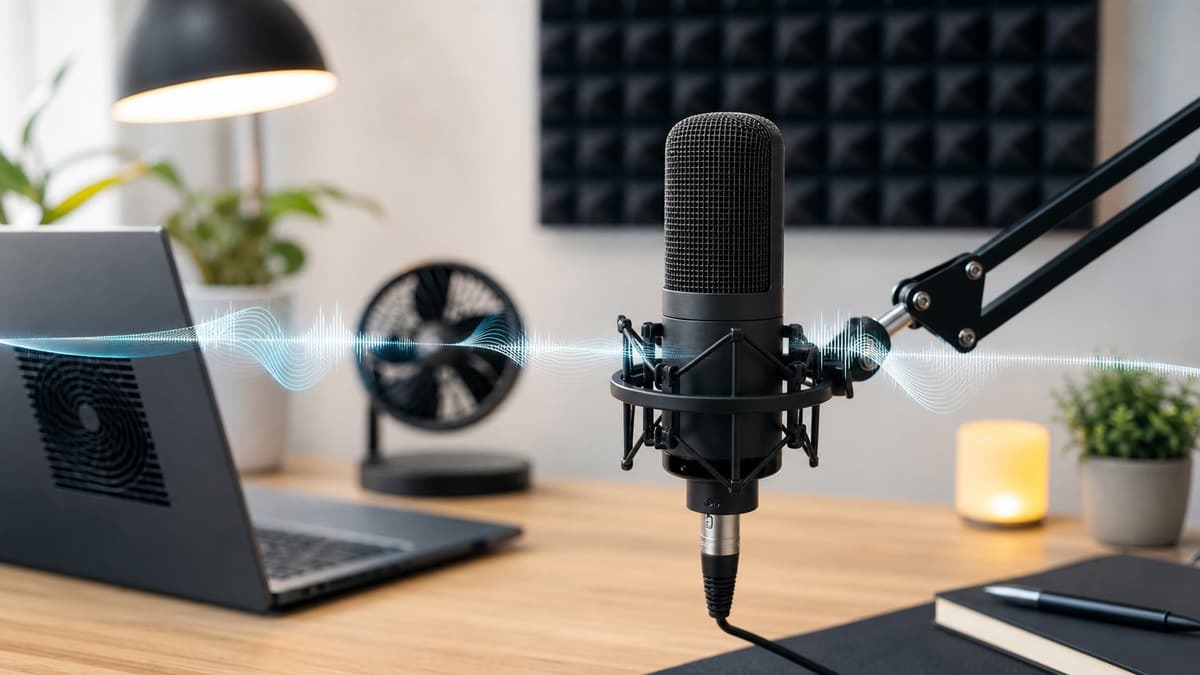
To remove fan noise from microphone audio, upload the original recording, preview an AI-cleaned version, and check whether the voice stays full while the fan drops into the background. Fan noise is one of the better candidates for cleanup because it is often steady: laptop fans, desk fans, HVAC, and computer towers usually create a consistent hum or rush behind the voice.
The trick is avoiding over-processing. A little remaining room tone is better than a voice that sounds hollow or metallic.
Why microphones pick up fan noise
Microphones hear distance differently than people do. Your brain can ignore a fan across the room, but a microphone records it as part of the signal. If the speaker is far from the mic, the fan may be only a little quieter than the voice.
Fan noise usually shows up as:
- Low room rumble
- Broadband air hiss
- Laptop fan whine
- HVAC whoosh
- Computer tower vibration
- Desk fan pulsing near the mic
Profile-based editors can reduce steady fan noise. The Audacity Noise Reduction manual explains that this kind of constant hum, buzz, hiss, or fan noise is a good use case, but also warns that too much reduction can damage the remaining audio. The same listening rule applies to AI cleanup: reduce enough, not too much.
The quick cleanup workflow
Use the least-compressed version of the file. If you recorded in a podcast app, screen recorder, camera app, or meeting platform, export the original audio or video rather than a reposted copy.
- Upload the recording to SoundClean.
- Generate a cleaned preview.
- Listen to a section where the fan is obvious.
- Check sibilants, breaths, and quiet endings of words.
- Download the full cleaned file if the voice sounds natural.
If you have a long recording, test a section where the fan changes speed. Laptop fans often ramp up during screen sharing, games, video rendering, or browser-heavy demos.
Noise gate vs. noise removal
A noise gate turns the mic down when you are not speaking. It can make pauses quieter, but it does not remove fan noise under your words. If the fan is audible while you talk, a gate alone will not solve the problem.
Noise removal tries to reduce the fan throughout the recording. For voice-first content, that usually gives a more consistent result.
Use a gate when the pauses are distracting. Use cleanup when the fan sits behind the voice.
What to listen for after cleanup
Fan noise removal can go too far. Check for:
- Words that sound clipped at the start or end
- A watery texture behind the voice
- Harsh S and T sounds
- Breaths disappearing unnaturally
- Sudden changes in room tone between phrases
If the recording is for a podcast, course, or voiceover, a natural voice matters more than total silence. The listener should notice the speaker, not the processing.
Fix the recording setup next time
Cleanup helps, but small setup changes make a bigger difference:
- Move the microphone closer to your mouth.
- Move the fan farther from the microphone.
- Point the back of a directional mic toward the fan.
- Put the laptop off to the side instead of directly behind the mic.
- Use a stand or boom arm so the mic is not on the same desk as a vibrating computer.
- Close heavy apps before recording to reduce laptop fan speed.
- Turn off HVAC or desk fans during short takes if the room stays comfortable.
The most important rule is mic distance. A close voice gives cleanup a strong signal to preserve.
For video, clean before editing
If the fan noise is in a video, clean the audio before detailed editing. That gives you a better source for captions, clips, and final exports.
With SoundClean, you can upload common audio or video formats and keep the workflow browser-based. That is faster than opening a full audio editor just to fix a laptop fan in a tutorial or webcam recording.
When fan noise cannot be fully fixed
Some recordings are too compromised. If the mic was far away, the fan was loud, and the room had echo, cleanup may improve clarity without making the audio sound studio-grade.
If you still need to publish, combine the cleaned track with practical edits:
- Add captions.
- Lower background music during speech.
- Cut sections where the fan surges.
- Re-record only the worst lines as voiceover.
Try a cleaned preview
Upload a fan-heavy recording to SoundClean and compare the preview with the original. If the voice feels closer and the fan stops pulling attention, process the full file and use the cleaned version for your edit.
Good fan cleanup should feel boring in the best way: the listener simply stops thinking about the fan.
FAQ
Can I remove fan noise from a microphone recording?
Yes. Fan noise is often steady enough for AI cleanup to reduce while preserving the main voice.
What causes fan noise in microphone audio?
Common causes include laptop fans, desk fans, HVAC, computer towers, and microphones placed too far from the speaker.
Should I use a noise gate for fan noise?
A noise gate can hide fan noise between words, but it will not remove fan noise while you are speaking. AI cleanup is usually better for the whole recording.
How do I prevent fan noise in future recordings?
Move the mic closer, move fans farther away, lower computer load, use a directional mic, and record in a quieter room when possible.