

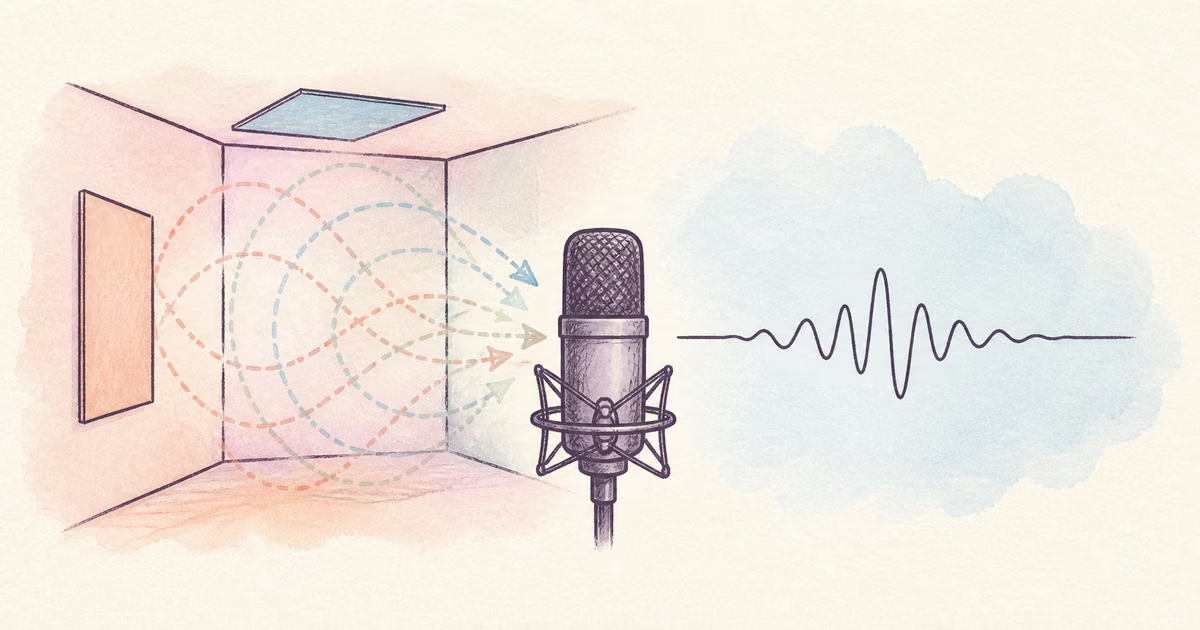
To remove echo from audio online, upload the original recording, preview a section with clear room reflections, and compare the cleaned voice with the source. Continue only when the words are easier to hear and the speaker still sounds natural. Light or moderate echo can often be reduced. Strong reflections that overlap each word can remain difficult.
The safe goal is clearer speech, not a perfectly dry studio sound. A small amount of room sound is better than a thin, metallic, or broken voice.
Quick Answer
Use an online echo cleaner when a usable voice sits inside a hollow or reflective recording. Keep the original file. Test 30 to 60 seconds with quiet words, pauses, and strong consonants. Listen for watery tones, missing word endings, and sudden changes in room sound. If the preview is a clear improvement, process the full file. If it creates new damage, stop and use the original.
Echo, reverb, and background noise are different
The correct diagnosis helps you choose the correct workflow.
| What you hear | Likely problem | Best first action |
|---|---|---|
| A clear repeat after a word | Echo | Test echo or speech cleanup |
| A long hollow tail around every word | Reverb | Test cleanup on a short sample |
| A steady fan, hum, or hiss | Background noise | Use steady-noise cleanup |
| Harsh crackles on loud words | Clipping | Return to another source if possible |
| Two voices covering each other | Overlapping speech | Edit or transcribe with manual review |
Reverb is a group of fast reflections mixed with the direct sound. The Audacity Reverb manual describes it as rapid, modified repetitions that create a sense of room ambience. In a real meeting, lecture, or interview, these reflections can reduce speech clarity even when you do not hear one clear repeat.
If the main problem is a fan, traffic, or general room tone, start with Remove Background Noise from Audio Online. Echo cleanup needs a different quality check because the unwanted sound is a delayed copy of the voice itself.
A preview-first echo removal workflow
Start with the highest-quality source. Do not record playback from a speaker when you can download or export the original file.
- Keep an untouched copy of the recording.
- Choose a section where the echo is easy to hear.
- Include a quiet speaker, a short pause, and several complete sentences.
- Upload the audio or video file to SoundClean.
- Generate a cleaned preview.
- Match the playback volume when you compare both versions.
- Check whether speech is clearer without new artifacts.
- Download the full file only when the preview passes the check.
For a meeting file, test a part where someone speaks far from a laptop. For an interview, test a quiet answer in the reflective room. For a podcast, test the guest track as well as the host track. The easiest section is not a useful quality test.
What to listen for in the cleaned preview
Echo reduction can remove useful parts of speech when it is too strong. Listen to the complete word, not only the silence between words.
Check these details:
- S, F, T, and K sounds stay clear.
- Quiet word endings do not disappear.
- Breaths do not turn into a watery sound.
- The voice does not move closer and farther away between phrases.
- Room tone does not switch on and off.
- Names and numbers remain easy to verify.
Use headphones for the first check. Then use a normal laptop or phone speaker. A result that only sounds acceptable on one device can still cause problems after publishing.
When online echo removal works best
Cleanup has the best chance when the direct voice is stronger than its reflections. Common examples include a webcam recording in a home office, a meeting recorded in a conference room, or a podcast guest in an untreated bedroom.
It is less reliable when the microphone was far from the speaker, the room was very large, or several speakers talked at the same time. The same limit applies when loud music, clipping, or wind already covers parts of words. Software can reduce captured sound. It cannot recover detail that the microphone did not record.
Use this decision rule:
- Use the cleaned file when speech is easier to understand and still sounds stable.
- Use the original file when cleanup creates more distraction than the echo.
- Try another source when a second microphone, camera track, or local participant recording exists.
- Re-record key lines when a short section is essential and cannot be repaired.
Echo in meetings, interviews, and podcasts
Each context needs a different final check.
For meetings, verify names, dates, decisions, and short replies. The guides to Clean Zoom Meeting Audio and Clean Google Meet Recording Audio explain how to keep the source file as the meeting archive.
For interviews, compare important quotes with the original. Use the cleaned version for easier review, but keep the source for research integrity. See Clean Interview Audio for a full quote-check workflow.
For podcasts, listen for changes in voice character. A small amount of room sound can feel natural. Use Clean Podcast Audio when echo is only one part of a larger edit.
Prevent echo in the next recording
Recording changes usually help more than stronger cleanup.
- Move the microphone closer to the speaker.
- Use headphones instead of open speakers.
- Record away from bare walls and large windows.
- Add soft objects such as curtains, rugs, or furniture.
- Avoid an empty room when a smaller furnished room is available.
- Ask remote guests to make a short test recording.
- Keep separate local tracks when the recording tool supports them.
Do not place the microphone in a corner. Corners can make reflections and low-frequency buildup more obvious. A close microphone gives the recording more direct speech and gives cleanup a better source to preserve.
Troubleshooting a poor result
If the cleaned preview sounds metallic, return to the original and test a different section. A poor result can mean that the reflections are too strong or that another problem was mistaken for echo.
If sharp crackles appear only on loud words, check for clipping. Audacity states that its Clip Fix effect is only likely to help lightly clipped audio (Audacity Clip Fix manual). Heavy clipping needs another source or a careful manual repair workflow.
If the room sound is acceptable but a fan or hiss remains, use a steady-noise workflow instead. Do not apply several strong cleanup stages without checking after each stage. Repeated processing can remove more speech than noise.
Related reading
- Remove Background Noise from Audio Online
- Clean Interview Audio
- Clean Podcast Audio
- Remove Fan Noise from Microphone
FAQ
Can I remove echo from audio online?
Yes. Online cleanup can often reduce light or moderate room reflections when the direct voice is still clear. Test a difficult section before you process the full file.
What is the difference between echo and reverb?
Echo sounds like a distinct repeat. Reverb is a dense group of reflections that makes speech sound distant or hollow. Many real recordings contain both.
Can echo removal restore words that are hard to hear?
It can improve clarity when reflections sit behind the voice. It cannot reliably rebuild words that overlap strong reflections, clipping, music, or another speaker.
Should I keep the original recording?
Yes. Keep the original for comparison, quotes, research records, or a later repair attempt. Use the cleaned file as the listening or editing copy.
Try a cleaned preview
Upload a reflective recording to SoundClean. Compare the difficult section with the original. Process the full file only when speech is clearer and still sounds natural.