

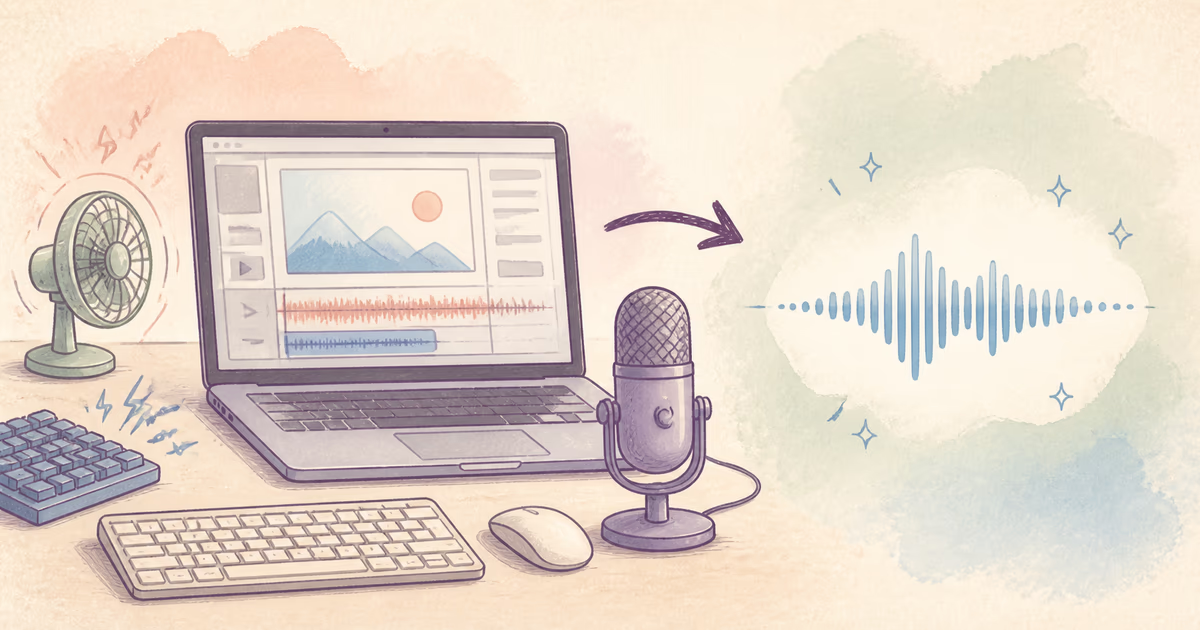
To clean screen recording audio online, use the original video and preview a section that contains narration and the main computer or room noise. Keep the result only when the voice is clearer, the screen timing remains correct, and keyboard or fan reduction does not remove speech detail.
SoundClean accepts MP4, M4V, and MOV video files. You do not need to extract the audio first.
Quick workflow
- Keep the original screen recording.
- Upload the video to SoundClean.
- Preview a difficult narrated section.
- Compare words, fan noise, clicks, and sync.
- Process the complete file only after the preview passes.
If your recorder produced a separate microphone track, keep it. Separate tracks give you more control than a final mixed video.
Common screen recording problems
Computer fan noise
Screen capture and active applications can increase computer load. A nearby built-in microphone can record the fan while you explain the screen. Steady fan noise is a useful cleanup test when speech remains clear.
Keyboard and mouse clicks
Clicks often occur while narration is active. Automatic cleanup can reduce some of them, but strong isolated clicks may need a local cut or repair. The guide to Remove Keyboard Sounds from a Podcast explains the same overlap problem.
Room echo
Laptop microphones are often far from the speaker. They capture room reflections and a lower level of direct voice. Light echo may improve, but a distant source has less detail.
Uneven microphone level
Turning toward a second monitor or leaning away from the desk can change voice level. Test several sections if the narrator moved.
Notification sounds
One alert is a local fault. Edit that moment instead of processing a clean full recording.
Choose the right preview
Use 30 to 60 seconds with normal narration, a quiet phrase, the main noise, and visible on-screen actions. Include keyboard use if it is part of the problem.
Check:
- Every instruction remains complete.
- S, F, T, and K sounds stay natural.
- Mouse clicks do not turn into sharp artifacts.
- Fan noise is lower under speech.
- The voice does not sound watery or metallic.
- The audio remains synchronized with cursor actions and cuts.
Do not test only an intro with no activity. Use the section that represents the real tutorial.
Clean before or after video editing?
Clean before detailed editing when the same noise affects most of the recording. Then cuts, captions, zooms, and clips use one approved source.
Edit first when only a few notifications or mistakes need removal, or when background music is already mixed with narration. Keep music separate from speech cleanup when possible.
For an already edited video, compare start time and duration after processing. Check transitions and the end of the file, not only the first minute.
Screen recording workflows
Software tutorial
Speech accuracy matters because the viewer follows exact steps. Verify product names, menu labels, and keyboard shortcuts against the original.
Course lesson
Test quiet explanations and any sections recorded on a different day. Different rooms or microphones can need separate decisions.
Product demo
Keep the cleaned file aligned with cursor actions. If one sentence is badly damaged, a short replacement voiceover can be better than strong full-file processing.
Recorded webinar
Check every speaker. A clean presenter and a noisy attendee should not receive the same processing when separate tracks are available. See Clean Zoom Meeting Audio for call-specific issues.
Gaming or live software capture
Game sound, music, and voice can be mixed. Speech-focused cleanup may change wanted program audio. Use separate tracks from the capture software when available.
Troubleshooting
The keyboard is quieter, but consonants are damaged
Keyboard attacks and speech consonants can share short, sharp characteristics. Return to the original and accept more keyboard sound or edit the loudest clicks locally.
Fan noise changes during the video
Test the beginning, middle, and end. Fan speed can rise with computer load. One preview may not represent the full recording.
Narration sounds distant after cleanup
The built-in microphone may have captured more room than direct voice. Stronger processing cannot create close-microphone detail. Keep the more natural version.
Audio drifts out of sync
Confirm that the processed file has the same start and duration. Use the original container and avoid unnecessary conversions.
Captions change after cleanup
Generate or update captions from the final approved audio. Verify technical terms and product names manually.
Improve the next screen recording
- Use an external microphone closer to your mouth.
- Move the computer away from the microphone when practical.
- Close unnecessary applications before recording.
- Put the microphone on a support isolated from the desk.
- Use keyboard shortcuts during silent gaps when possible.
- Disable notifications.
- Record microphone and system audio on separate tracks.
- Review a one-minute test before the full session.
Related reading
- Remove Background Noise from Video Online
- Remove Fan Noise from Microphone
- Improve Audio Quality Online
- Make a Voice Clearer in a Recording
FAQ
How do I clean screen recording audio online?
Upload the original video, preview a narrated section with the main noise, and process the full recording only when speech and synchronization pass.
Can I clean a screen recording without extracting the audio?
Yes. SoundClean accepts MP4, M4V, and MOV video files.
Can cleanup remove keyboard clicks?
It can reduce some keyboard noise. Loud clicks that overlap words can need precise editing.
Why does my screen recording have fan noise?
Screen capture and active software can increase computer load and fan speed while a nearby microphone records.
Test the busiest useful section
Upload the original video to SoundClean. Preview a section with narration and computer activity before you process the full screen recording.