

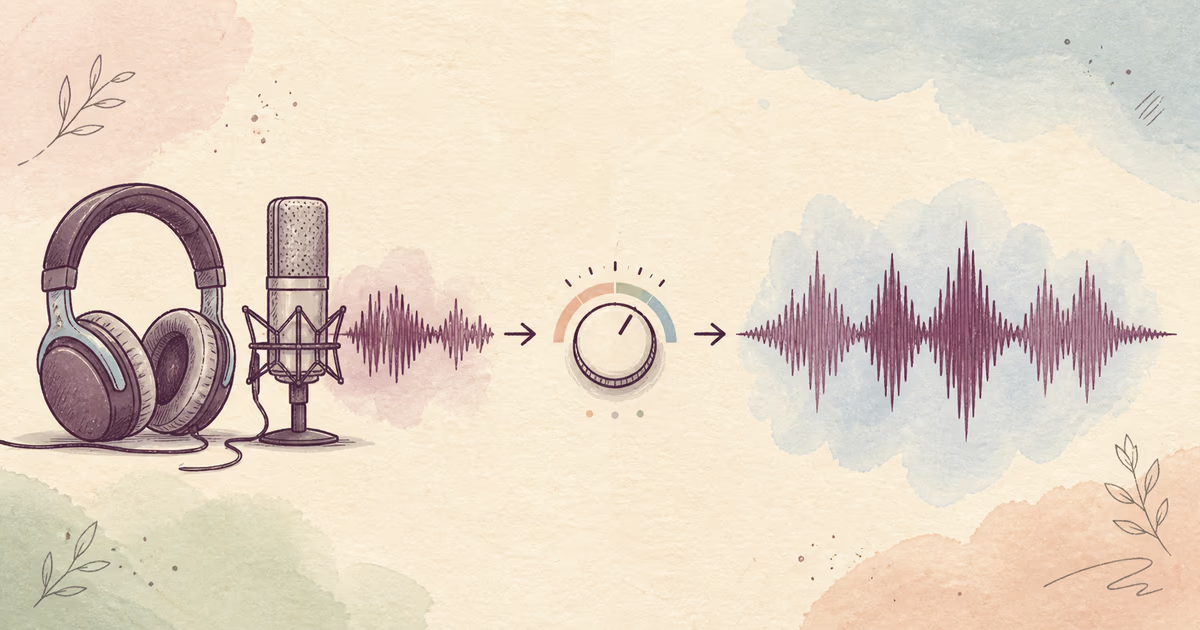
To improve audio quality online, diagnose the largest problem before you choose a process. Keep the original, test a section with normal speech and the defect, and compare the result at a similar volume. Use the cleaned file only when it is easier to understand and still sounds natural.
Better quality does not mean complete silence. It means that the important sound is easier to follow.
Quick workflow
- Upload the earliest supported audio or video file.
- Preview the section that best represents the problem.
- Compare words, background sound, and voice character.
- Download the full result only after the preview passes.
SoundClean supports MP3, WAV, FLAC, M4A, OGG, MP4, M4V, and MOV.
What “improve audio quality” can mean
The phrase covers several separate problems. Use the sound, not a generic preset, to choose the first action.
| Problem | What you hear | First decision |
|---|---|---|
| Background noise | Fan, hiss, traffic, or room sound behind speech | Test noise cleanup |
| Echo | Voice sounds hollow or distant | Test echo reduction cautiously |
| Low level | Voice is clean but quiet | Adjust level after diagnosis |
| Clipping | Loud syllables crackle or distort | Find another source if possible |
| Muffled speech | Words lack detail or the microphone was covered | Check the source and distance |
| Uneven speakers | One person is much louder | Balance separate tracks when available |
Noise reduction does not fix every row. Strong processing can make an already clear voice worse.
Start with the best source
Use the recorder, camera, or local call track instead of a reposted or forwarded copy. If you have an original WAV or M4A and an MP3 export, test the original first. Converting the MP3 back to WAV cannot restore discarded detail.
For video, use the original MP4, M4V, or MOV when possible. This avoids an unnecessary audio extraction and makes it easier to protect synchronization.
Choose a representative preview
Select 30 to 60 seconds with normal speech, a quiet phrase, the main defect, and a short pause. If the file contains several speakers, include each important voice.
During the comparison, check:
- Complete words and consonants.
- Less noise while speech is active.
- Stable breaths and pauses.
- No metallic, watery, or choppy texture.
- The same speaker identity.
- No new synchronization problem in video.
Do not test only a silent gap. Silence can become clean while speech loses detail.
Improve spoken audio in the correct order
1. Protect the source
Keep an unchanged master. Give every processed file a separate name.
2. Reduce the main distraction
Test one focused cleanup pass for recurring noise or light room problems. Do not stack several strong processes.
3. Confirm speech clarity
Compare the result with the original. A quieter background is not useful if names or word endings disappear.
4. Edit and balance levels
After you choose the better source, make cuts and balance speakers. Raising volume before noise cleanup can also raise the distraction.
5. Export once for the destination
Avoid repeated lossy exports. Keep a higher-quality master when your editor provides one.
Limits of online enhancement
An enhancer can work with the information in the recording. It cannot reliably recreate:
- Words hidden by loud music or another voice.
- Speech detail removed by severe clipping.
- Missing sections after a dropout.
- Close-microphone detail from a very distant source.
- Quality removed by repeated compression.
Use a backup recording or retake when exact wording matters. A partial cleanup can still help a listener or transcription system, but verify critical content against the original.
Workflows for common recordings
Podcast or interview
Clean separate speaker tracks only where needed. Keep music out of a speech-cleanup pass. See Clean Podcast Audio and Clean Interview Audio.
Screen recording or tutorial
Check computer fan noise, keyboard taps, and microphone distance. Keep the video source and verify sync with Clean Screen Recording Audio Online.
Voice note or narration
Use the original phone or recorder file. Include soft delivery in the preview. Read Clean Up a Voice Recording Online.
Transcript or subtitles
Clean before transcription when recurring noise affects most of the file. Confirm names and figures with Improve Audio for Transcription.
Common mistakes
- Treating louder audio as higher-quality audio.
- Converting a compressed file and expecting restored detail.
- Testing only silence.
- Applying the same process several times.
- Processing clean music and speech together.
- Deleting the original after one good preview.
- Expecting cleanup to repair heavy clipping.
Improve the next recording
- Move the microphone closer to the speaker.
- Use a quieter room with fewer hard reflections.
- Set a safe input level with a loud test sentence.
- Turn off fans and appliances when practical.
- Ask remote speakers to use headphones.
- Save separate local tracks.
- Listen to a short test before the real session.
Related reading
- How to Clean Up Audio Online
- Remove Background Noise from Audio Online
- Fix Muffled Audio Recordings
- Best Audio Cleaner Software
FAQ
How can I improve audio quality online?
Use the best original, identify the main defect, and compare a cleaned preview with the source. Process the complete file only when speech is clearer and natural.
Can an online audio enhancer restore bad audio?
It can reduce common distractions around usable speech. It cannot recreate missing words, reverse severe clipping, or fully recover covered speech.
Does converting an MP3 to WAV improve quality?
No. It changes the file format but does not restore information removed by MP3 compression.
What should I improve first?
Fix the problem that most affects understanding. This is often noise, echo, distance, clipping, or uneven speaker level.
Improve the real file, not a demo
Upload your recording to SoundClean. Preview the difficult part, compare it with the source, and continue only when the improvement is clear.