

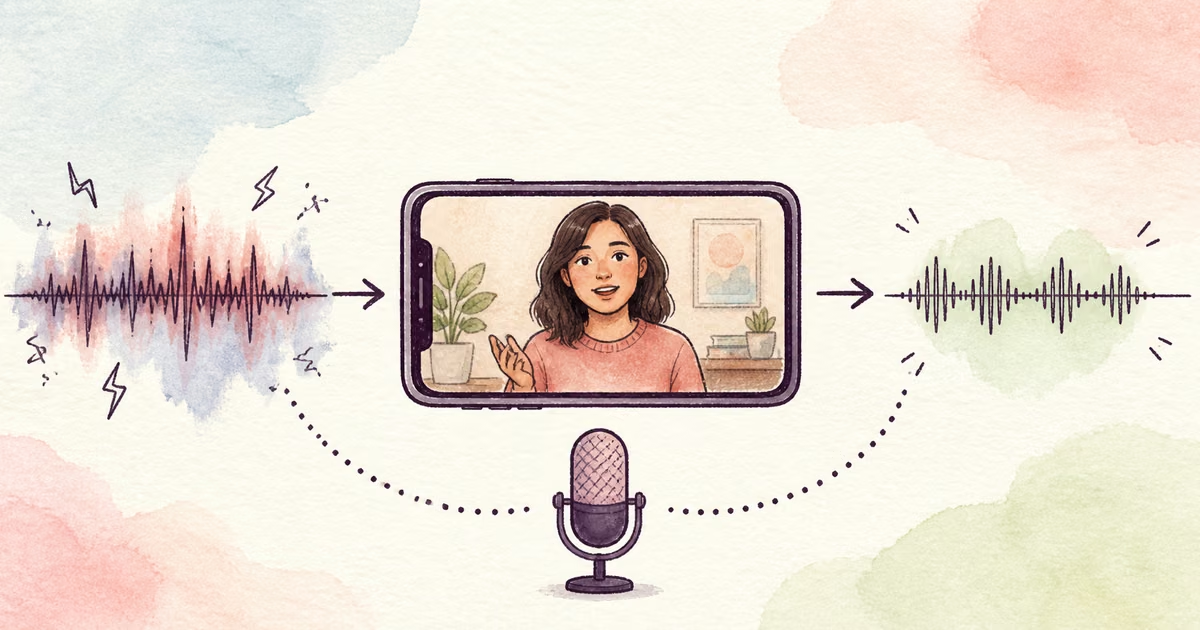
To remove background noise from video online, upload the original video, generate a cleaned preview, and compare a difficult speech section with the source. When the voice is clearer and the picture remains correct, download the cleaned video and use it for editing, captions, or sharing. You do not need to separate and rebuild the audio track for a basic cleanup.
This workflow is useful for phone videos, interviews, tutorials, webinars, course lessons, product demos, and talking-head clips. It is not a promise to restore speech that the microphone did not capture.
Quick Answer
Keep the original video. Test 30 to 60 seconds that contains the real problem, such as wind, traffic, fan noise, or room sound. Upload the file to SoundClean and compare the preview at the same playback volume. Continue only when speech improves without metallic tones, missing word endings, or sync problems. Then use the cleaned video as the working copy.
Choose the correct video cleanup path
The noise type determines whether automatic cleanup is a good first step.
| Video problem | Good first action | Important limit |
|---|---|---|
| Steady fan, air conditioner, or hiss | Test automatic noise cleanup | Check quiet speech for artifacts |
| Light wind behind clear speech | Test a difficult outdoor section | Strong gusts can replace parts of words |
| Room echo in a tutorial or webinar | Test speech cleanup | Deep reflections can remain |
| Short handling bump or isolated click | Edit the affected section | Whole-file cleanup can be unnecessary |
| Loud music or another voice over speech | Find another source or edit manually | Separation may damage the main voice |
| Clipped camera audio | Check another camera or recorder track | Noise removal does not rebuild clipped peaks |
If your file is audio only, use Remove Background Noise from Audio Online. If the main problem is wind from an iPhone camera, use Remove Wind Noise from iPhone Video for a more specific outdoor check.
The simple online workflow
Start with the source video from the camera, phone, meeting platform, or screen recorder. Avoid a video that has already passed through several social apps when the original is available.
- Copy the original video to a safe location.
- Select a section where the unwanted sound is clear.
- Upload the file to SoundClean.
- Generate the cleaned preview.
- Compare speech, pauses, and visual playback with the original.
- Download the full result when the preview passes.
- Use the cleaned copy for captions, cuts, and final export.
SoundClean currently accepts MP4, M4V, and MOV video files. It accepts MP3, WAV, FLAC, M4A, and OGG audio files. Use the original container when it is supported. An extra conversion can add compression and another failure point.
What stays the same in the video
The cleanup workflow processes the sound while keeping a video result. It is designed for a creator who wants clearer audio without rebuilding the edit by hand. You should still inspect the output before you remove the original from your workflow.
Check these items:
- The full picture is present.
- Audio and lip movement remain aligned.
- The start and end are not cut.
- Speech is clearer in the noisy section.
- Music and useful location sound still fit the scene.
- The file opens in your normal editor or player.
Keep the untouched video until the project is complete. The source gives you a reference for sync, exact quotes, ambient sound, and a new processing attempt.
Clean before detailed editing
For most voice-first videos, test cleanup before you make many cuts. This gives your caption tool, timeline, and final export the same working audio.
A practical order is:
- Copy and organize the source files.
- Test one difficult cleanup preview.
- Process the full video if the test passes.
- Create captions or a transcript.
- Make story and timing edits.
- Mix music and final sound.
- Export and watch the complete result.
There are exceptions. If one handling bump affects only one second, edit that small section. If different scenes have different noise, you may need separate treatment. Do not process a clean music section only because a spoken section has fan noise.
Quality checks for common video types
Phone and outdoor video
Check gusts, clothing movement, and distant speech. Strong wind is irregular. It is harder to remove than a steady fan. Keep some outdoor ambience when it supports the scene.
Tutorials and screen recordings
Listen for laptop fans, mouse clicks, keyboard sounds, and room echo. If typing is the main problem, Remove Keyboard Sounds from Podcast gives a useful click-quality check that also applies to tutorials.
Interviews and documentary clips
Verify names, dates, figures, and important quotes against the original. The cleaned file can be the editing copy. The source should remain the record. See Clean Interview Audio.
Webinars and meeting recordings
Check each speaker. A preview that improves the host may damage a quiet remote guest. Test the person with the weakest microphone, not only the first speaker.
What automatic cleanup cannot fix
Noise cleanup needs usable speech. It cannot reliably recreate words when wind, clipping, music, or another speaker has replaced the same part of the signal.
Use another source when possible:
- A separate lavalier or field recorder track
- The local recording from a remote guest
- A second camera with closer sound
- The original meeting export instead of a screen recording
- A clean voiceover for one essential line
For light clipping, a specialist repair tool can attempt to estimate missing peaks. The Audacity Clip Fix manual warns that this approach is only likely to help lightly clipped audio. Treat severe clipping as source damage, not background noise.
Troubleshooting the cleaned video
If speech sounds thin or metallic, return to the original and compare at the same volume. Loudness can make a processed result seem better even when clarity is worse.
If useful ambience disappears, keep the original sound for non-speech scenes or use a less processed source when available. If the picture and sound appear out of sync, do not continue editing. Verify the output in a second player and keep the original timeline reference.
If the file type is not accepted, export a supported copy from the original editor. Do not use a download from a social platform when the camera file still exists.
Prevent noise in the next video
- Move the microphone closer to the speaker.
- Use a windscreen outdoors.
- Monitor with headphones during a short test.
- Record a separate microphone track for important work.
- Keep fans and computers away from the microphone.
- Ask remote speakers to record a local track.
- Stop and repeat a line after a siren or handling bump.
A cleaner source reduces editing time and gives automatic tools more direct speech to preserve.
Related reading
- Remove Background Noise from Audio Online
- Remove Wind Noise from iPhone Video
- Remove Echo from Audio Online
- Clean Interview Audio
FAQ
Can I remove background noise from a video online?
Yes. Upload a supported video file, preview the cleaned audio, and download the result when speech is clearer. The workflow keeps the video content with the cleaned audio track.
Which video files can I upload to SoundClean?
SoundClean currently accepts MP4, M4V, and MOV video files. It also accepts MP3, WAV, FLAC, M4A, and OGG audio files.
Should I clean video audio before or after editing?
Test cleanup before detailed editing. When the preview passes, use the cleaned file for cuts, captions, and final exports. Keep the original as a backup.
Can noise removal recover speech covered by wind or music?
Not always. Cleanup can reduce noise around usable speech, but it cannot reliably rebuild words that were fully masked or clipped.
Try a cleaned video preview
Upload a supported video to SoundClean. Compare the noisiest useful section. Download the full result only when speech is clearer and the video remains ready for your next edit.