
 SoundClean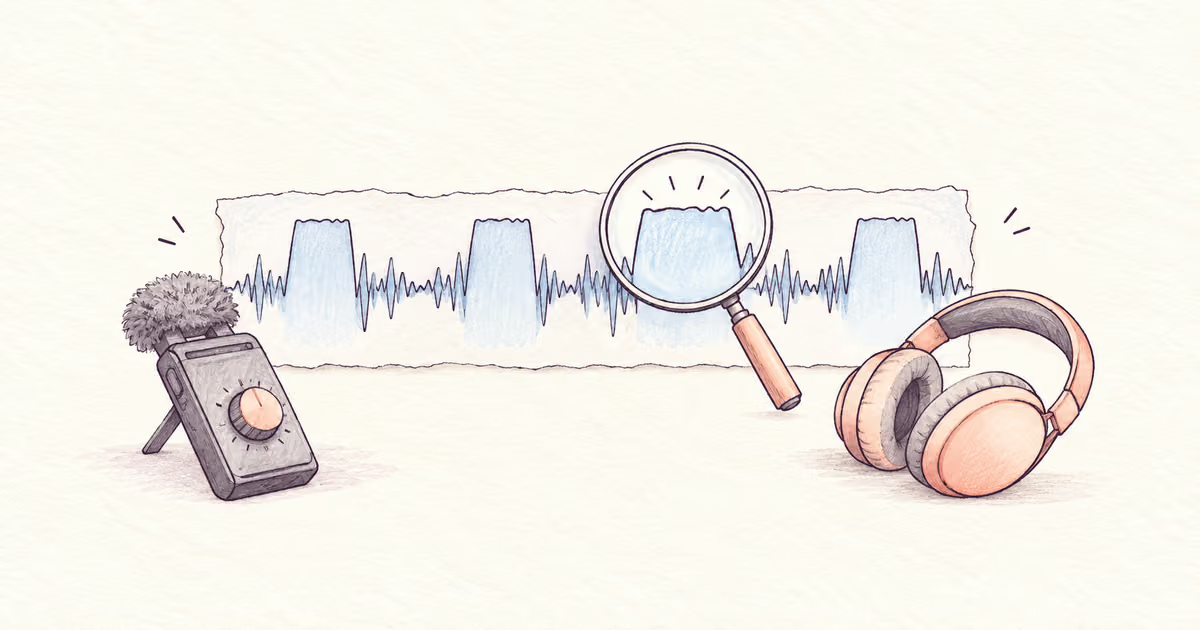
To fix distorted audio, first find out where the distortion starts. A recording can crackle because the saved signal is clipped, a speaker is overloaded, or earlier processing damaged the voice. Each problem needs a different response.
Lower the playback volume and try another listening device before editing. If the fault remains in the same words, preserve the original and test a short repair. Do not assume that a background-noise remover can rebuild clipped speech.
Quick Answer
Test another playback device first. If the saved recording is lightly clipped, try a dedicated clipping repair on a copy and compare it at the same listening volume. Return to the original if processing caused the fault; record again when important speech remains damaged.
Separate playback faults from file damage
Play a familiar clean recording through the same headphones or speaker. If that also sounds distorted, check the playback path first.
Then play your problem file at a moderate volume on a second device. Note the exact time of the fault.
| Observation | First action | What it can establish |
|---|---|---|
| Fault disappears when playback is quieter | Check the speaker or output level | The saved file may be usable |
| Harsh sound repeats at the same loud word | Inspect the source for clipping | Damage may be in the file |
| Voice became watery only after cleanup | Compare with the untouched source | Processing may have introduced it |
| Whole voice sounds dull rather than broken | Check microphone and source quality | The problem may be muffling |
| Short low burst occurs on a P | Inspect that syllable | It may be a plosive |
For a dull voice, use Fix Muffled Audio. For an isolated air burst, use Remove Plosives.
What clipping means for repair
Clipping occurs when the signal exceeds a limit and its peaks cannot be represented correctly. Turning the saved file down reduces its level; it does not restore the missing peak shape.
A flat-looking peak can help identify clipping, but use listening as well. Previous compression, limiting, and later exports can make the cause less obvious.
A clipping-repair tool estimates the missing shape. Audacity's Clip Fix reference says its reconstruction is most likely to help lightly clipped audio. This is a limited repair, not recovery of an untouched performance.
A repair workflow for a small damaged passage
Make a duplicate and select a passage with both the distorted word and nearby normal speech.
- Compare it with any earlier source or backup.
- If the damage is light clipping, test a dedicated clipping repair in an editor.
- Leave room for reconstructed peaks as the repair tool requires.
- Match the listening volume for the before-and-after comparison.
- Check whether consonants, breaths, and tone remain believable.
- Keep the result only if the whole phrase is easier to understand.
Do not select an aggressive preset solely because it removes the harshest sound. It may replace a recognizable word with a smoother but less accurate one.
For example, a clipped laugh before a clear sentence may be tolerable after a small edit. A clipped name in that sentence needs more careful review. Treat these as different acceptance decisions.
If distortion appeared after noise reduction
Return to the original. Compare the same passage before and after processing, with playback levels close enough for a fair test.
For tools with adjustable reduction, lower the amount and test again. If you cannot adjust the process, compare an alternative from the original. Do not repeatedly clean the already damaged output.
Audacity's Noise Reduction manual describes the tradeoff between reducing noise and preserving wanted sound. Noise that overlaps speech closely can be difficult to remove without audible changes.
Read Remove Background Noise in Audacity for its noise-profile workflow. That process addresses background noise, not all forms of distortion.
Where SoundClean can help
If usable speech has fan noise, hiss, or a noisy background, upload the original to SoundClean and compare its preview. Check the exact words that trouble you.
A quieter background may make the remaining fault easier to identify. It does not prove that clipping has been repaired. If the affected word occurs outside the available preview, prepare a short excerpt in an editor for a separate test.
Keep a result only when it improves listening without changing important speech. For a source interview, retain the original and verify quotations using the interview cleanup process.
Know when another recording is better
Re-record when a critical word remains unclear, loud passages are heavily broken throughout, or each repair makes the voice less recognizable.
For the next take, reduce the recording input level, keep a steady microphone distance, and test the loudest expected phrase. Changing the playback volume after recording cannot replace that input-level check.
FAQ
Does lowering the volume fix clipping in a saved file?
It makes the distorted sound quieter but does not restore the missing waveform peaks. It can help if the distortion comes only from overloaded playback.
Can noise reduction repair clipped speech?
Noise reduction and clipping repair are different tasks. A cleaner may lower background noise while clipped words remain distorted.
Can every distorted recording be restored?
No. Light clipping may respond to a repair tool, but heavily damaged or missing speech may need a new recording.
Choose the next step from the fault
Use clipping repair for lightly damaged peaks, and return to a better source when words are missing. If usable speech also has background noise, try a SoundClean preview from the original. Compare the problem words before processing the full recording.