

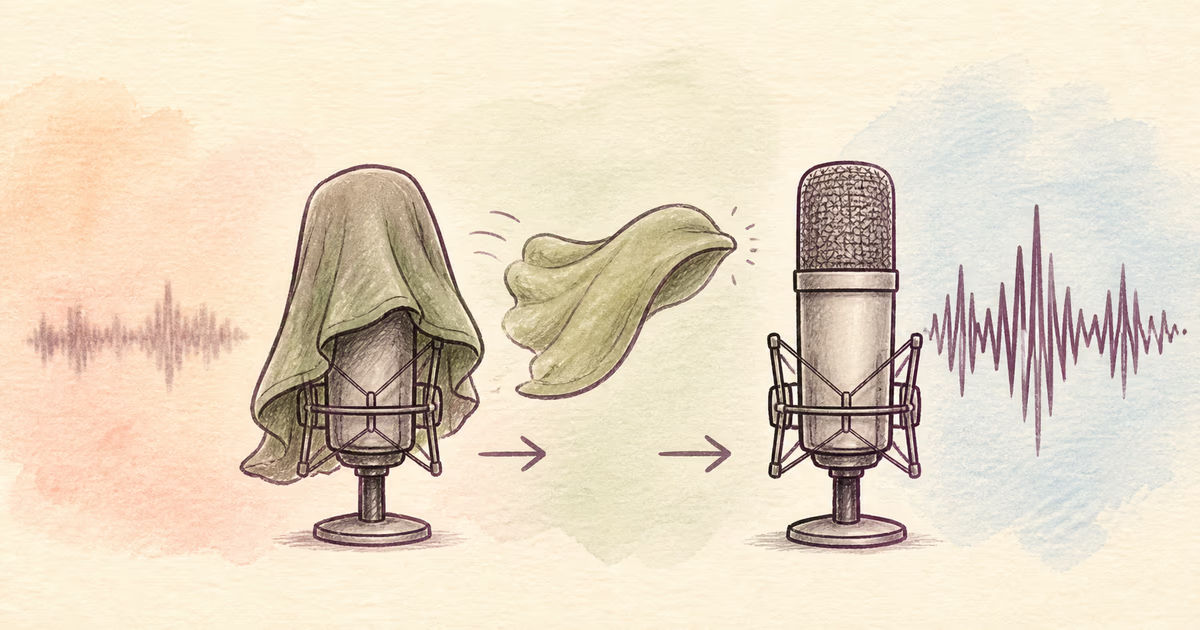
To fix a muffled audio recording, first determine whether the cause is background noise, microphone distance, room echo, a blocked microphone, or missing high-frequency detail. Test cleanup only when usable speech is present. Do not expect a filter to recreate information that the microphone never captured.
The safest result is clear, natural speech, not a bright but harsh voice.
Quick diagnosis
| What happened | Likely effect | Repair outlook |
|---|---|---|
| Phone microphone was covered | High-frequency detail is reduced | Limited if detail was never captured |
| Speaker was far away | More room and less direct voice | Noise or echo reduction may help partly |
| File was exported many times | Compression can blur transients | Use an earlier source |
| Strong denoising was already applied | Consonants may be removed | Return to the untouched original |
| Voice is quiet behind steady noise | Speech is masked | Test cautious cleanup |
| Playback device sounds dull | Recording may be correct | Compare headphones and another speaker |
Start with the original source
Find the phone, recorder, camera, or local call file. A forwarded voice note or social-media download may contain more compression than the original. Converting a muffled MP3 to WAV does not restore its missing detail.
Listen on two devices before editing. A blocked laptop speaker, unusual headphone setting, or playback equalizer can make a good file sound muffled.
Test whether noise is masking the voice
When steady noise sits behind complete speech, a cleaned preview can make the words easier to follow. Choose a section with quiet speech, normal speech, noise, and a pause. Upload it to SoundClean and compare at a similar volume.
Check S, F, T, and K sounds. If they become less complete, stop. Strong reduction can make a muffled source worse.
SoundClean supports MP3, WAV, FLAC, M4A, OGG, MP4, M4V, and MOV.
When equalization can help
An equalizer changes the level of frequencies that already exist. A careful change can make a dull recording more intelligible, but too much high-frequency boost also raises hiss, compression texture, and harshness.
Use a copy, make a small change, and compare real words. Do not use a large “clarity” boost to compensate for a covered microphone. If the consonant detail is absent, the equalizer has nothing reliable to reveal.
Muffled phone recordings
Phone audio often becomes muffled when a finger, case, fabric, or debris blocks a microphone opening. The phone may also be inside a pocket or too far from the speaker.
For the saved file:
- Keep the original M4A or video.
- Compare sections before and after the phone moved.
- Test cleanup only where noise masks usable speech.
- Use another device recording when one exists.
- Re-record a short critical message when possible.
For iPhone Voice Memos, use the specific workflow in Clean iPhone Voice Memos Audio.
Muffled meeting and interview audio
A shared laptop microphone can be too far from one speaker and close to another. Test each speaker before cleaning the whole track. If separate local tracks exist, use them.
Keep the untouched recording for exact quotes. Cleanup can help listening or transcription, but it does not prove that an uncertain word is correct. Read Clean Interview Audio and Improve Audio for Transcription.
Troubleshooting
The voice gets brighter but not clearer
The process may be raising noise and artifacts rather than speech detail. Return to the original and use a smaller change.
Noise reduction makes words disappear
Quiet consonants can be mistaken for noise. Include the softest important phrase in your preview. Keep more background sound when that protects speech.
The audio is muffled only after export
Compare the editor timeline, original source, and exported file. Check codec settings, sample rate handling, and whether another application added processing. Export once from a known source.
Only one speaker is muffled
Use the separate track if available. Do not process a clean speaker because another microphone had a problem.
The recording also clips
Treat clipping as a separate limit. Lowering volume or reducing noise will not reconstruct heavily distorted peaks.
Prevent muffled recordings
- Keep phone and recorder microphone openings clear.
- Remove or adjust a case that blocks a microphone.
- Place the microphone closer to the speaker.
- Use a soft room with fewer reflections.
- Record a test at the real speaking distance.
- Monitor important sessions with headphones.
- Save separate local tracks for remote speakers.
- Keep the original file before sharing or exporting.
Related reading
- Make a Voice Clearer in a Recording
- Clean Up a Voice Recording Online
- How to Clean Up Audio Online
- Remove Echo from Audio Online
FAQ
Can muffled audio be fixed?
Sometimes. Cleanup can reduce noise and light room problems around usable speech. It cannot recreate detail that the microphone did not capture.
Why does my phone recording sound muffled?
A case, finger, pocket, debris, microphone distance, or a noisy room can reduce clarity. Check whether the microphone was blocked.
Will increasing treble fix muffled speech?
A small change may reveal existing detail. It also raises hiss and artifacts and cannot restore missing information.
Should I use noise reduction on muffled audio?
Use it only when background noise is also a clear problem. Strong reduction can make speech less complete.
Preview before you process
Upload the earliest source to SoundClean. Test the muffled passage and continue only when real words become easier to understand.