

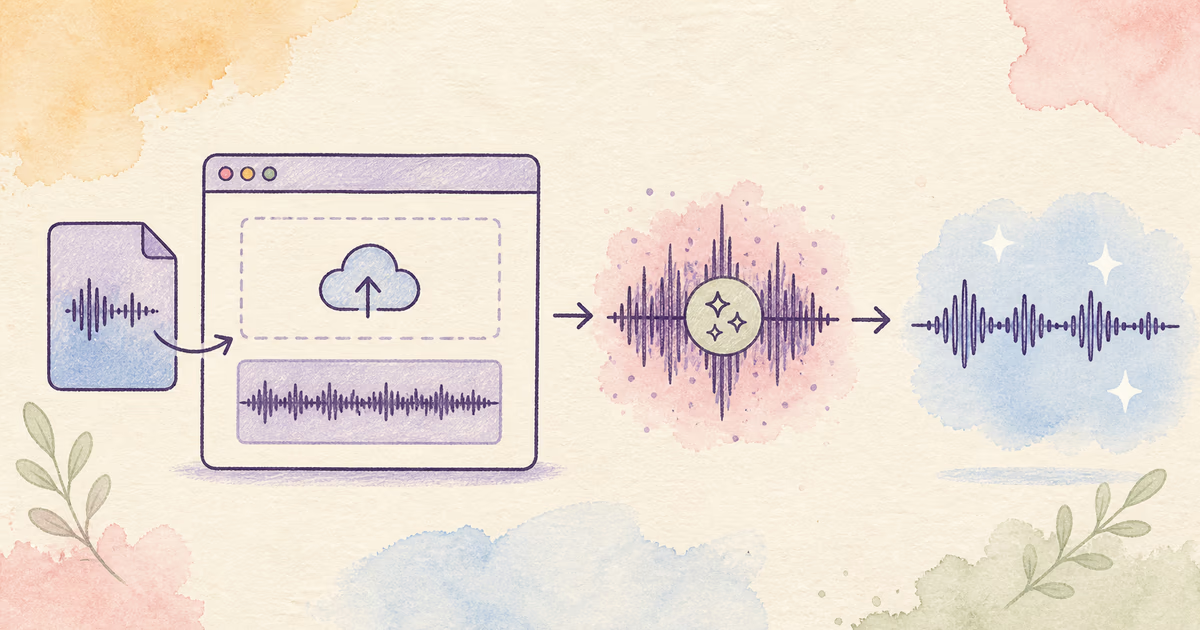
To clean up audio online, start with the best source file, identify the main defect, and test a representative section. Compare the cleaned preview with the original at a similar volume. Continue only when speech is easier to understand and the voice still sounds natural.
The useful goal is not complete silence. It is clear speech with fewer distractions.
Quick three-step workflow
- Upload the original audio or video. SoundClean accepts MP3, WAV, FLAC, M4A, OGG, MP4, M4V, and MOV files.
- Clean and preview the sound. Use a section that contains normal speech and the main noise.
- Download only after the comparison passes. Keep the original file beside the cleaned version.
You can try the preview workflow in SoundClean without first learning a full audio editor.
Diagnose the recording before you clean it
“Bad audio” can describe several different problems. Listen once and name the problem that most affects the message.
| What you hear | Likely problem | First action |
|---|---|---|
| Steady shushing sound | Hiss or high microphone gain | Test noise cleanup |
| Low tone or electrical rasp | Hum or buzz | Check the equipment, then test cleanup |
| Hollow or distant voice | Room echo or microphone distance | Test echo reduction cautiously |
| Harsh crackle on loud words | Clipping | Find another source or use light clip repair |
| One or two sharp clicks | Local damage | Repair or cut only those moments |
| Voice changes from clear to buried | Variable noise or moving microphone | Test several different sections |
Do not apply every available effect. If the problem is low volume, noise reduction is not the first answer. If the words are clipped, making the background quieter will not restore them.
Choose a useful preview section
A silent gap can show whether noise is reduced, but it cannot show whether speech survives. Select a short passage that contains:
- Normal speech and at least one quiet phrase.
- The main unwanted sound.
- A short pause.
- Important consonants and word endings.
- More than one speaker when the file contains several voices.
For example, a tutorial may have a steady laptop fan and occasional keyboard taps. Use a passage where the presenter speaks while both sounds are present. If the fan recedes but the words become metallic, the cleanup is not a useful improvement.
Compare the cleaned audio correctly
Listen to the source and preview at a similar volume. A louder file often seems clearer even when it contains no extra detail.
Ask five questions:
- Are the words easier to follow?
- Is the main distraction meaningfully lower?
- Are S, F, T, and K sounds still complete?
- Does the speaker still sound like the same person?
- Did the process add pumping, watery tones, or sudden gaps?
Use headphones to find artifacts, then use a phone or laptop speaker to check ordinary listening. For interviews, meetings, or research, verify names and figures against the original.
What online cleanup can fix
Online cleanup is a practical first test when usable speech sits above a recurring background sound. Common cases include fan noise, air conditioning, broad hiss, light electrical hum, and moderate room noise.
It can also help a podcast, lecture, meeting, screen recording, or phone video that already contains understandable speech. See the focused guides for cleaning podcast audio, cleaning interview audio, and removing background noise from video.
What cleanup cannot restore
No cleaner can reconstruct information that the microphone did not capture. Set cautious expectations when:
- Loud speech is heavily clipped or distorted.
- Music or another voice fully covers important words.
- The speaker is very far from the microphone.
- Wind hits the microphone directly and masks speech.
- A compressed copy has replaced the original recording.
- The file contains missing sections or digital dropouts.
A partial improvement can still be useful. It is better to keep a little natural room sound than to remove so much that the voice becomes artificial.
When to clean before or after editing
Clean before detailed editing when steady noise affects most of a spoken recording. Then cuts, captions, transcripts, and social clips all use the same approved source.
Edit first when only one short section is damaged, or when music and effects are mixed with speech. Separate tracks give you more control. Clean only the noisy voice instead of processing a complete mix.
For a video, keep the original picture file and check synchronization after cleanup. For transcription, review the process in Improve Audio for Transcription.
Common cleanup mistakes
Cleaning the wrong source
Use the recorder, camera, or call export when possible. A social-media download or repeatedly exported MP3 can contain extra compression damage.
Testing only silence
Noise can disappear in pauses while returning under speech. Always judge the words.
Repeating strong cleanup
Several passes can remove consonants and create metallic or watery speech. Return to the original when one pass is not a clear improvement.
Deleting the original
Save a separate cleaned file. The original is the reference for exact wording, later tools, and a different repair attempt.
Expecting one process to solve every defect
Noise, echo, clipping, clicks, and uneven volume are separate faults. Diagnose first and make the smallest useful change.
Improve the next recording
- Move the microphone closer to the speaker.
- Turn off fans and appliances when practical.
- Keep the microphone away from keyboards and table vibration.
- Record a loud test sentence and prevent clipping.
- Ask remote speakers to use headphones.
- Save separate tracks when the recording system provides them.
- Listen to a short test before the real session starts.
Better capture gives every later cleanup tool more useful speech and less unwanted sound to separate.
Related reading
- Remove Background Noise from Audio Online
- Remove Static from Audio Online
- Remove Echo from Audio Online
- Best Audio Cleaner Software
FAQ
How can I clean up audio online?
Keep the original, upload a representative section, and compare the cleaned preview with the source. Process the full file only when speech is clearer and still natural.
Can online audio cleanup repair every recording?
No. It can reduce common background noise and light room problems. It cannot recreate missing words or reliably restore heavily clipped or fully covered speech.
Should I clean audio before editing?
Clean first when one recurring noise affects most of the recording. Edit first when the damage is local or when you must separate speech from music and effects.
Which file should I upload?
Use the earliest, highest-quality supported source. SoundClean accepts MP3, WAV, FLAC, M4A, OGG, MP4, M4V, and MOV.
Test the difficult part first
Upload your recording to SoundClean and preview the section that best represents the problem. Download the full result only when it is a clear improvement over the original.