
 SoundClean
Adobe Podcast can reduce background noise in a spoken recording through Enhance Speech. The useful test is whether you can follow the words more easily while the speaker still sounds natural. A silent background alone does not prove a good result.
Keep the original file. Open Adobe Podcast Enhance Speech, use your Adobe account, and check the current file and plan limits before uploading. If you want a second result to compare, start a SoundClean preview from that same original.
Quick Answer
Upload a copy of the original to Enhance Speech, check the controls available on your plan, and compare complete sentences before downloading. If the voice changes too much, reduce the processing where possible or test another tool from the original. Use the same passage and listening volume for each comparison.
Check the account and file requirements first
The public Adobe page currently asks users to sign in or create an account. It lists video support and adjustable processing among its premium features. Check Adobe's plans for the options available to your account; do not assume every control shown in a tutorial is included.
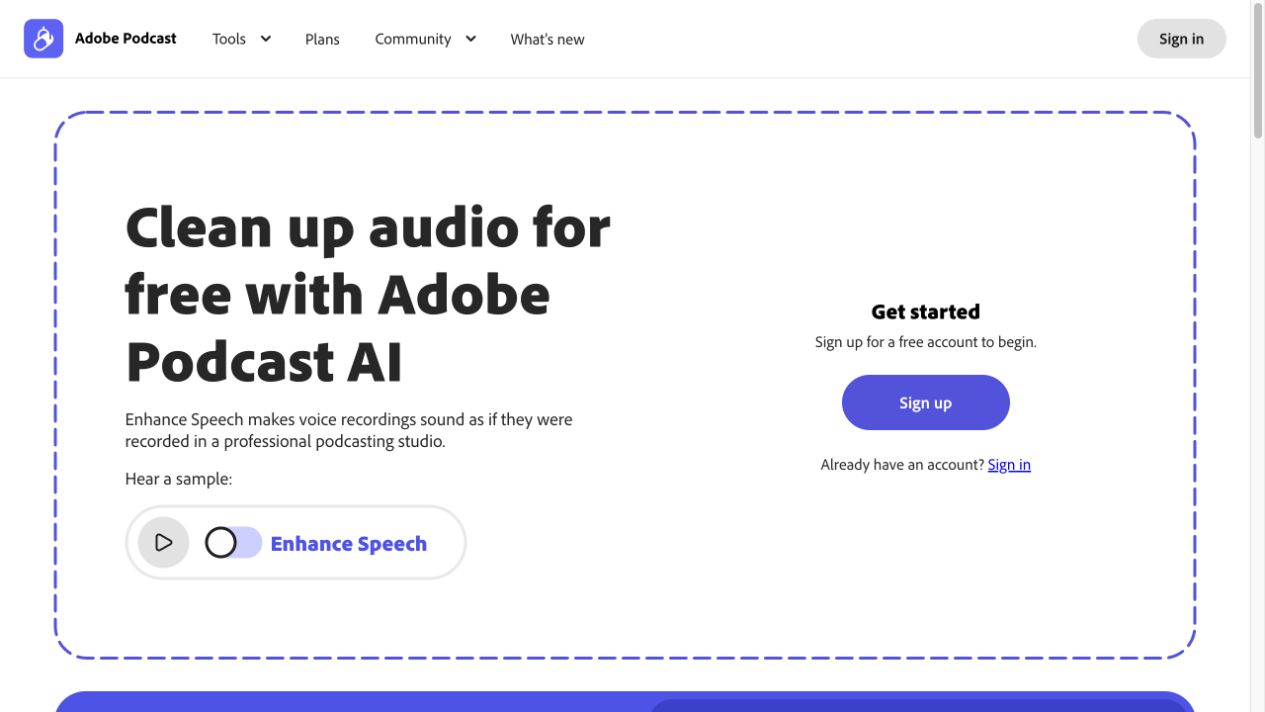
Adobe Podcast's public page, captured on 18 October 2026. This is the starting page, not a processed-file result.
Use the best source you have. If you have an original WAV and a compressed messaging copy, begin with the WAV. If an MP3 is your only source, use it directly instead of repeatedly converting it. See MP3 versus WAV for cleanup for the format decision.
A controlled speech-cleanup workflow
- Save an untouched copy of the recording.
- Find a passage with normal speech, a quiet word, and the main noise.
- Open Enhance Speech and upload a supported source file.
- Wait for processing, then compare the same passage in the original and enhanced versions.
- If adjustment controls are available, reduce the processing when the voice becomes unnatural.
- Download a separate result only after checking complete sentences.
Adobe's Enhance Speech guide describes uploading a recording and adjusting the strength to balance enhancement with a more natural sound. The exact controls depend on the current product and plan.
For a long file, review more than its opening. A quiet introduction can pass while a loud laugh, a distant guest, or a later section with music fails.
Listen for speech damage
Use headphones and compare at a similar listening volume. A louder result can seem clearer even when it has lost detail.
| Passage | Listen for | Reject the result when |
|---|---|---|
| Quiet answer | Short words and sentence endings | A word disappears or changes |
| Name or number | Every syllable | You must guess the meaning |
| Fast speech | Clear consonants | Words run together |
| Pause before speech | Stable background | Noise suddenly rises and falls |
| Loud laugh | Natural tone | New crackling or harshness appears |
For example, a guest might say, “Send the draft on Friday.” Check the quiet word “on” and the start of “Friday,” not only the noise between sentences. This is a suggested listening test, not a measured result from either service.
Choose a different repair when the problem is different
Enhancement is not the only editing task.
- If peaks are harsh and broken, use the distorted-recording guide.
- If the voice has a long hollow tail, compare the result with the original and read the echo guide.
- If music is mixed with speech, use the music-removal decision process.
- If a single P sound produces a thump, repair that event with the plosive workflow.
Do not keep increasing enhancement to repair a missing word. Ask for another take when an important phrase remains unclear.
Compare Adobe Podcast with SoundClean
Create two independent candidates from the original. Do not use the Adobe result as SoundClean's input for this comparison.
In SoundClean, upload the original audio or video and compare the source with its cleaned preview. If the problem occurs later than the available preview, prepare a short test excerpt in an editor. SoundClean does not need to receive your complete recording just to test that excerpt.
Use the table above for both candidates. Keep the version with clearer words and fewer unwanted changes. If neither improves the file, keep the original or use a targeted repair. This method does not assume that one service wins on every recording.
For more workflow choices, read Best Audio Cleaner Software.
FAQ
Does Adobe Podcast remove background noise?
Enhance Speech is designed to reduce noise around spoken audio. Check the processed result because quiet words and the character of the voice can change.
Why does enhanced speech sound artificial?
Strong processing can change weak consonants, breaths, and room sound. Reduce the enhancement where your plan permits, or return to the original and test another workflow.
Should I process the Adobe output in SoundClean?
For a fair comparison, start each tool from the same original. Repeated processing can make it harder to identify which step damaged the voice.
Test the source before a full export
Try the same short passage in SoundClean. Keep both originals and results clearly named, and choose by the words you can hear.